Author: BruceBlue
Some netizens asked me why I chose MiniMax. The reason is simple: plenty of quantity and not bad results!
But when I looked at my quota... I couldn’t use it all, not even a bit (I bought the Max Coding Plan)! I subscribed to Claude quota in Cursor and Gemini (Antigravity) but let it go to waste, and I wasn’t satisfied: why not pull Claude Code, this terminal tool, into the mix and enjoy it for free?
I just didn’t want to buy Claude Pro, which is why I went through all this trouble. Opus 4.6 consumes tokens too aggressively; $500 a month isn't enough and isn't very user-friendly for domestic users. MiniMax M2.5 is incredibly fast and cost-effective, just right to replace it!
I’ve tried all the tutorials online, but basically none of them worked, so I had no choice but to start from scratch and write a complete guide specifically for those who don’t want to buy Claude Pro and just want to use MiniMax purely. It's applicable for both Mac and Windows users, truly starting from scratch, and can be done in just a few minutes!
First, let’s talk about why I’m doing this (the benefits of using Claude Code to connect to MiniMax API)
Purely for obsessive-compulsive disorder + welfare for the freeloaders:
No need to buy Claude Pro! Save money completely.
The official Claude Pro costs at least $19 a month and also limits tokens. We directly use the surplus MiniMax API, completely bypassing the login and subscription, with a marginal cost of zero.
Make full use of the MiniMax quota you purchased.
Bought the Coding Plan but can’t finish using it? Now stuff everything into Claude Code and use it all up, not wasting a penny!
Faster, steadier, and doesn’t lag.
MiniMax M2.5 responds faster than the official Opus. No more worrying about network issues or “model doesn’t exist” errors.
Ultimate terminal tool experience.
Directly type commands in the project folder; contextually read the entire folder, which is ten times better than the web version! Write code, debug, and build small tools all in one go.
One-shot capabilities explode; cost-performance ratio crushes.
M2.5 directly overthrows Opus 4.6 in Claude Code, creating automation scripts, small tools, and web scrapers all in one go.
Switch back to official Claude anytime.
If you’re not satisfied, just enter /model to switch back to the official one (provided you buy Pro later), super flexible.
In one sentence: enjoying it for free, saving money, fast, and useful—this is the real victory of “wisdom and courage”!
Preparation: How to open the terminal on different systems
Since many brothers and sisters are using the terminal for the first time, I’ll first teach everyone the most basic operations, ensuring that even those with zero foundation can keep up!
Mac users (the easiest):
Press Cmd + Space to open Spotlight search
Type “Terminal” or “终端”
Press Enter to open the black window (that's the terminal!)
Windows Users (recommended to use PowerShell):
Press the Win key
Type “PowerShell”
Right-click on “Windows PowerShell” → choose “Run as administrator” (important! Needed during installation) (or you can directly search for “terminal” to open the new Windows Terminal as well)
Linux / WSL users:
Just open “Terminal” or press Ctrl+Alt+T.
Step One: Install Claude Code (No need for Claude Pro!)
Important reminder: Since we will be using MiniMax for complete proxy, installing Claude Code itself does not require a Claude Pro subscription. This is the significance of our efforts!
Recommended installation method (2026 latest official way, no need for Node.js, more stable)
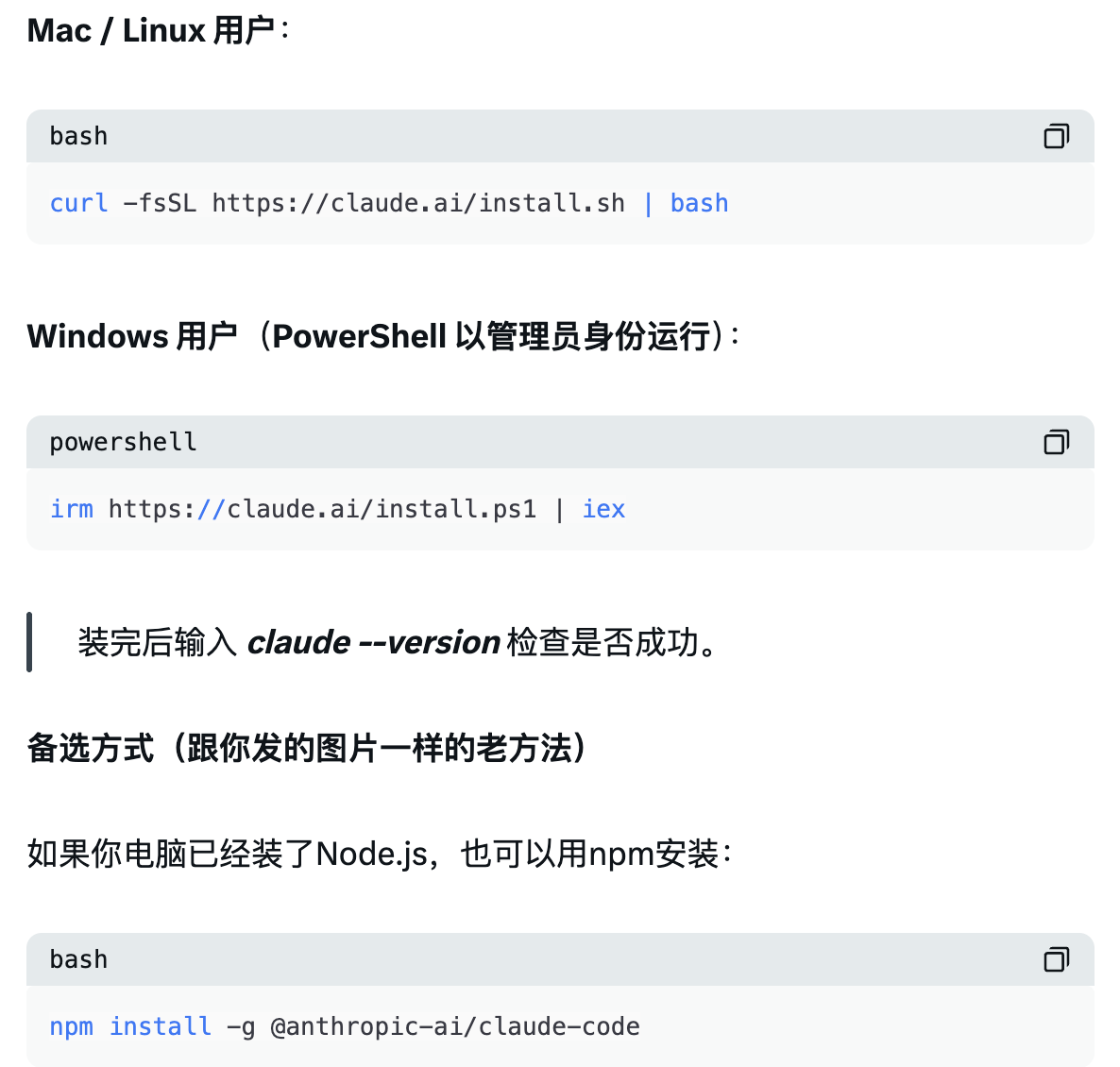
(Note: The npm method is officially marked as deprecated, but it can still be used for now)
Step Two: Obtain MiniMax API Key
Open the MiniMax official API Platform to log in → click on the Coding Plan under Subscribe → choose different plans and purchase → create new Key and record it down (needed in the next steps)
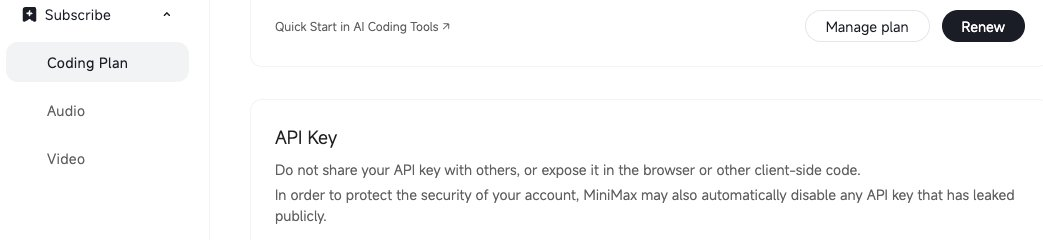
PS: If there’s free MiniMax API, that’s fine too.
Step Three: Create a configuration file (the most critical step! It has a workaround to skip login)
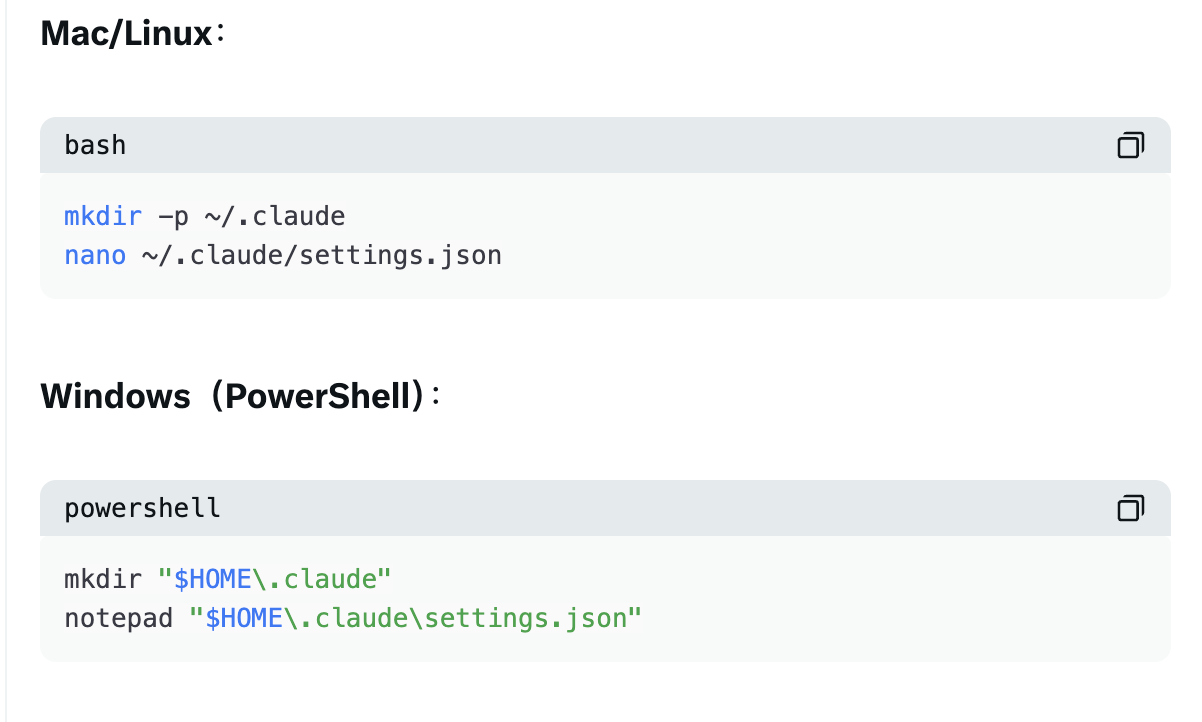
Copy the following content completely (replace yourMiniMax_Key> with the one you just obtained):
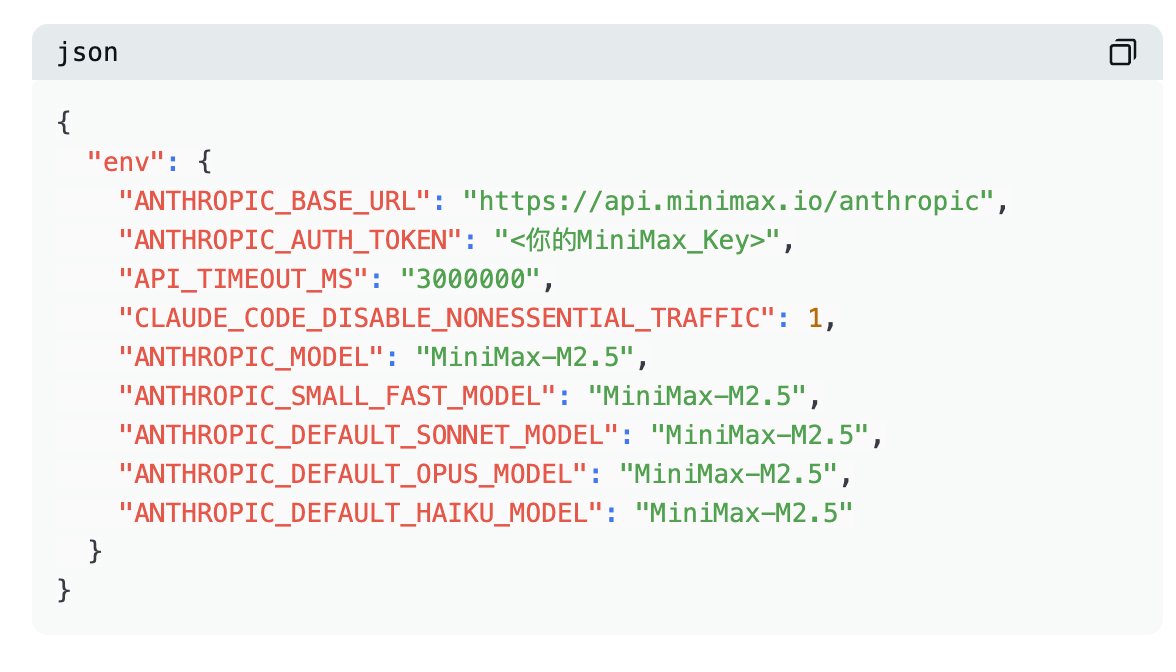
Save and exit (nano: Ctrl+O → Enter → Ctrl+X; Windows save and close directly).
Add an extra file to skip login (super important! Essential if you don't buy Pro):
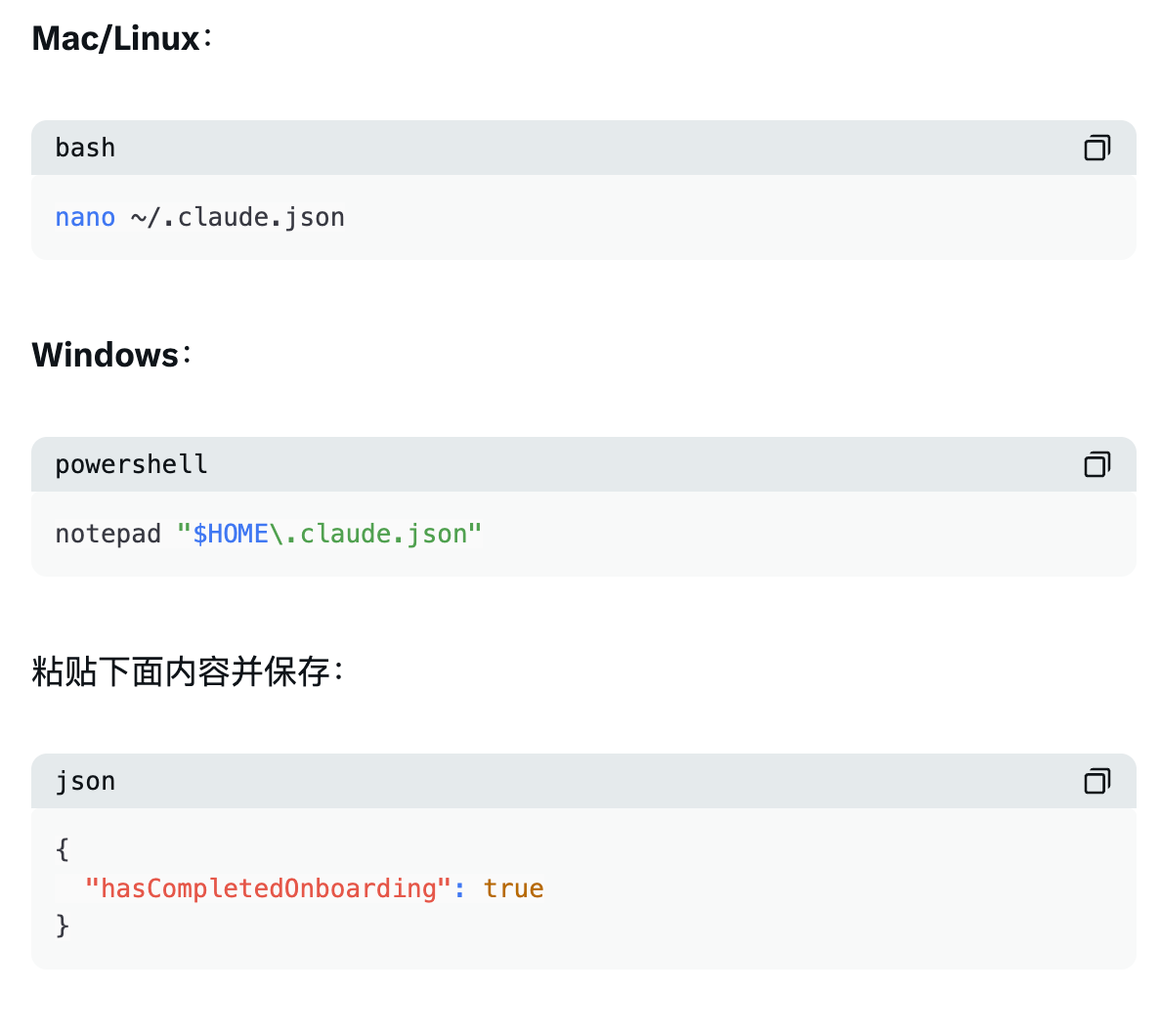
Step Four: Clear old Anthropic environment variables (to prevent conflicts!)
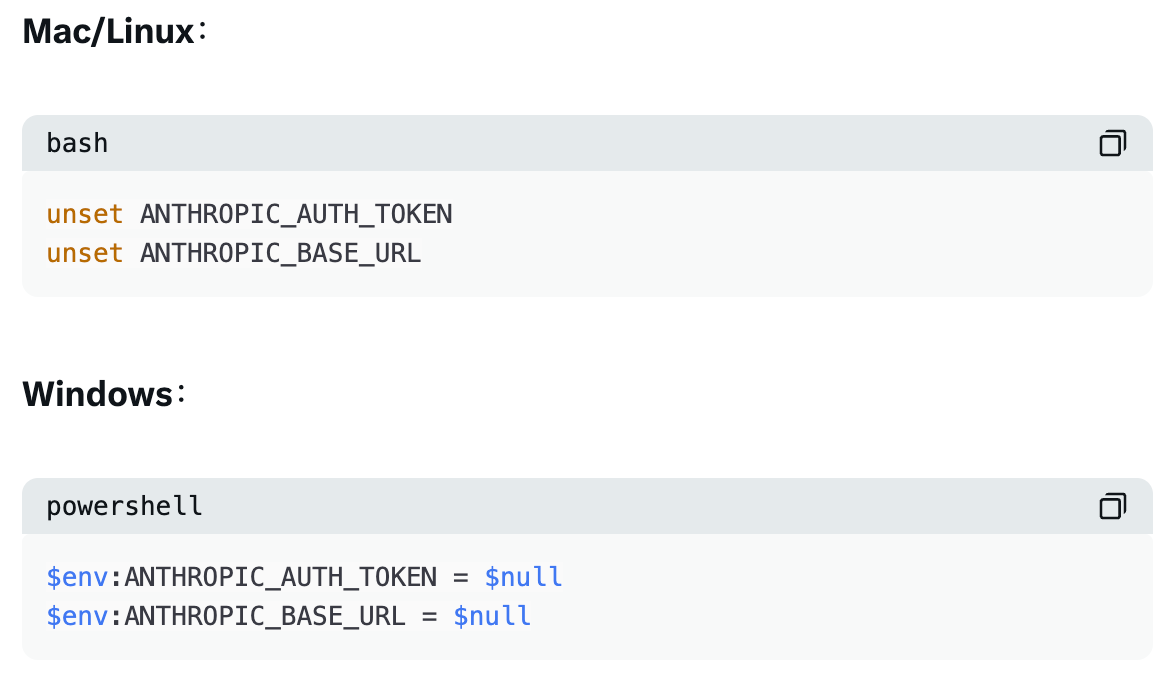
Step Five: Completely restart and launch
Completely close all current terminal windows
Open a new terminal/PowerShell and enter your project folder
Type claude to start
When prompted, select Trust This Folder
Super important: Since we have configured the MiniMax proxy + the skip login file, this time the startup will not display the official login window, it will go directly in!
Step Six: Verification
Type /model; you should see MiniMax-M2.5 selected. Then type hello casually, it should not throw an error, nice!
If you are in mainland China (IP within the country), change ANTHROPIC_BASE_URL to:

Leave the others unchanged.
Want to temporarily switch back to official Claude? Just type /model → select Default (Opus 4.6) (provided you have the Claude Code Key locally).
The real feeling after setup

Once everything is done, Claude Code can directly display and call MiniMax.
M2.5 in Claude Code is incredibly fast, with explosive cost-performance ratio, capable of directly overthrowing Opus 4.6! The ability to write small tools is really impressive; on the day I finished the setup, I had it help me write some automation scripts, and it was absolutely amazing.
The entire process felt like battling with MiniMax and Claude Code. The Coding Plan and memberships for MiniMax are separate, and Claude Code is constantly guiding users to purchase memberships, but since I have the ample MiniMax Coding Plan, let’s enjoy the freeloading to the fullest, it’s fantastic!?
免责声明:本文章仅代表作者个人观点,不代表本平台的立场和观点。本文章仅供信息分享,不构成对任何人的任何投资建议。用户与作者之间的任何争议,与本平台无关。如网页中刊载的文章或图片涉及侵权,请提供相关的权利证明和身份证明发送邮件到support@aicoin.com,本平台相关工作人员将会进行核查。


